Docker Guide#
Introduction#
Diving into using docker is covered on this page. Podman can also be used which is designed to be a drop-in replacement for docker. Details about podman can be further found in the redhat documentation and official podman documentation. Docker or podman is assumed to be already installed.
Note
To use podman instead of docker, simply replacing the commands will suffice as it’s intended to be a drop-in replacement. The initial installation of podman may alias the docker command to podman by redefining the docker socket environment variable DOCKER_HOST.
Docker Architecture#
The docker architecture follows a server/client model in which a daemon is ran as a background service. The server is the docker host which runs a daemon (docker daemon) that will run all the commands. The docker client is commonly used which communicates via an API to the docker socket which is exposed by default to /var/run/docker.sock and can alternatively be exposed via TCP to communicate across networks. Running docker commands are running as a client that connects to the socket and communicates via the API. The docker registry is a repository of images which can be leveraged and built upon. To begin, view the information of the installed docker/podman instance.
docker info
Note
Since the docker daemon is a service, managing the status/stop/start of the service can be done with systemctl or service commands. (ie; systemctl status docker)
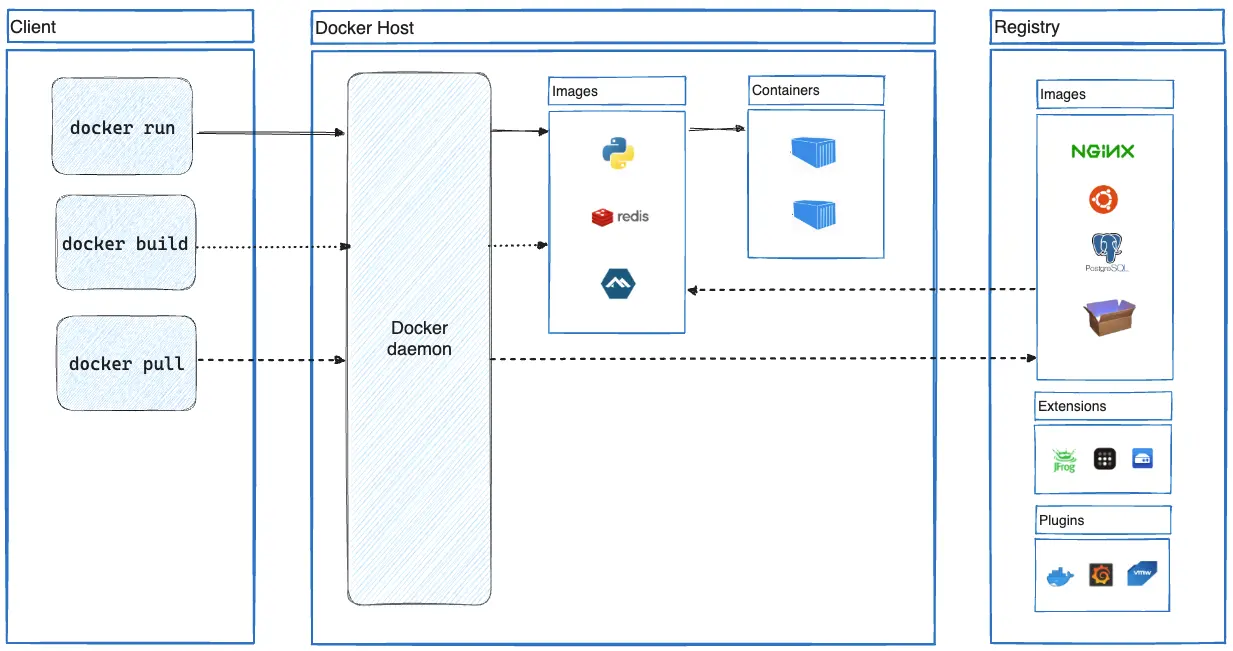
Docker Architecture#
Note
Podman is daemon-less by design which does not rely upon a server/client model as does with docker. The daemon-less nature of podman is due to the ability to run containers at the root level (as opposed to docker which runs the daemon as root) which possess a security risk to allow containers to operate as root. Podman does, however, allow communication over a socket for compatability with docker.
Running a Container#
Running a Container#
Diving right in, start by pulling an image:
# pull the hello-world image
docker pull hello-world

# view the docker images currently downloaded locally
docker image ls

# run the hello-world image as a running container
docker run hello-world
In the commands above, the hello-world image is pulled from the default Docker Hub registry to the local registry. The local registry is stored and managed by the docker daemon as a local copy of the image. The local image registry is viewed with docker image ls which lists all the local images. The container is then executed by running docker run ... command which starts running a container from an image. The hello-world image simply echos a hello world statement and then exits.
The docker run command is heavily used and the documentation is a useful reference in starting out: https://docs.docker.com/reference/cli/docker/container/run/. When running the container without pulling the image, docker will search the registry to see if the image exists and will search/download the image from the registry if it doesn’t. For example, running docker run godlovedc/lolcow will automatically pull the image and run it.
Note
Images follow a notation of [registry_hostname[:port]/][namespace/]repository_name[:tag] which are also interpreted and stored on the registry appropriately. The registry_hostname defaults to docker.io which is Docker Hub, the main docker registry. Other registries can be specified such as redhat’s Quay.io, Nvidia Container Registry, and Github Container Registry. The namespace and repository_name define the image itself and the tag is used to specify a particular version of the image.
Looking at a more practical use of containers run the following to run a specific version of python using tags.
python-3.14 with the alpine variant## Run python 3.14 built on-top of the alpine linux OS
# --rm deletes the container after it exits (instead of stopping the container)
# -it attaches the container to the current tty to make it interactive with the current shell
docker run --rm -it python:3.14.0-alpine
# >> import sys
# >> sys.version
# >> exit()
# in a seperate terminal, the running container can be viewed and inspected
docker ps
docker container ls
# container id is assigned when ran
# container name is randomly assigned if not specified
docker container inspect [CONTAINER_NAME | CONTAINER_ID]
In this code block, an image of python 3.14 built on-top of the minimal OS of Alpine Linux (~MB). However, the python image is a bare-bones implementation of python without any packages or add-ons. To add required dependencies, a new docker image can be created that builds upon the initial python image through the use of a Dockerfile.
Docker Commands#
Before moving on, it’s useful to highlight some common docker commands.
The common notation for commands follow
docker [MANAGEMENT_COMMAND] [COMMAND] [ARGUMENTS...]
MANAGEMENT_COMMAND: is optionally the docker object to interact with (container,volume,network,image,node, etc.)COMMAND: is the command to run against the objectOPTIONS: are the various augments passed to the command itself
Common commands can be used to investigate each of the docker objects. Container identification can use either the CONTAINER_ID or CONTAINER_NAME. Image identification can use either the IMAGE_ID or REPOSITORY_NAME[:TAG]]
Command |
Description |
|---|---|
docker image lsdocker images |
List images |
|
List containers |
|
List volumes |
|
List networks |
|
Inspect an image |
|
Inspect a container |
|
Inspect a volume |
|
Inspect a network |
docker image rm IMAGE [IMAGE...]docker rmi IMAGE [IMAGE...] |
Remove an image |
docker container rm CONTAINER [CONTAINER ...]docker rm CONTAINER [CONTAINER ...] |
Remove a container |
|
Remove a volume |
|
Remove a network |
|
Remove unused images |
|
Remove stopped containers |
|
Remove unused volumes |
|
Remove unused networks |
|
Remove unused data |
|
Show docker disk usage |
Command |
Description |
|---|---|
|
Download image from an OCI registry to the local registry |
|
Upload an image from the local registry to an OCI registry |
|
Tag a image/tag to a new image/tag |
|
View the STDOUT log from a container |
docker container run IMAGEdocker run IMAGE |
Run a container from an image |
docker container stop CONTAINER [CONTAINER ...]docker stop CONTAINER |
Stop a running container by sending a terminate signal ( |
docker container start CONTAINER [CONTAINER ...]docker start CONTAINER |
Start a stopped container |
docker container stats CONTAINER [CONTAINER ...]docker stats CONTAINER |
Show the resource usage of a container |
The docker run Command#
The docker run command is particularly important to look at as it follows as an alias to docker container run. Particular reference to the documentation here is highly recommended to review.
docker run#docker container run [OPTIONS] IMAGE [COMMAND] [ARG...]
OPTIONS: are arguments to thedocker containercommandIMAGE: specifies which image to runCOMMAND: overwrites the default command set by the image to run within the containerARG: overwrites additional arguments passed to the container’sCOMMAND
Note
Docker images have a unique hash ID when they are built which allows idenification for knowing when an image is updated or when tags are overridden.
Docker containers also have unique IDs (and names) that are assigned to them when running so they can be identified when running commands against them.
Option |
Description |
|---|---|
|
Combination of |
|
Mounts a volume to a path in the container |
|
Map the host port 8080 into the container at port 80, TCP by default |
|
Sets the environment variable |
|
Sets the environment variables inside the container defined from a file |
|
Automatically removes the container ( |
|
Assign a container name |
|
Attach the container to a network |
|
Extends the privileges to the container |
|
Starts the container at a defined working directory |
|
Sets the initial user and group to run the container as |
|
Sets the container hostname |
|
Sets a |
|
Detached mode starts the container in as a background process (use |
Building an Image/Container#
Building an image is done by writing a Dockerfile (or Containerfile for podman) which contains a simple set of directives on commands that are executed in order when building an image. An image is built using layers that build upon previous layers to ultimately form a final image. Images always start from a base image and build ontop of it. Base images can include the bare OS such as alpine, debian, ubuntu, fedora, and others where dependencies and configuration files can be added/modified to meet the requirements for the resulting application intended for the image to be used as a container.
Building an image can be done using various tools, docker and podman enable various backend OCI image building tools to make the build process easier to use.
Dockerfile#FROM python:3.14.0-bookworm
# install image/video processing libraries and remove the apt cache
RUN apt-get update -y && \
apt-get install -y libavcodec-dev libavformat-dev libswscale-dev libv4l-dev libxvidcore-dev libx264-dev libjpeg-dev libpng-dev libtiff-dev \
&& rm -rf /var/lib/apt/lists/*
# install python packages
RUN pip install \
numpy \
opencv-python \
opencv-contrib-python \
pandas \
scikit-learn \
scipy
ENTRYPOINT /bin/bash
When building an image, a build context is used which is a folder workspace that is initially copied over into the build process and then used for compiliation of an image. The context usually contains the Dockerfile at the root directory of the build context and compiles layers similar to a Makefile where layers are cached and reused if they aren’t modified in subsequent rebuilds of the image. The caching capability is useful when debugging and constructing an image, saving time and avoids re-downloading/computing lines that were previously executed. Refer to the Docker Building Best Practices for optimizations and suggestions when building images.
The main reference for Dockerfile syntax are in the Docker’s Dockerfile Reference page which highlights the various options that can be used when building images. The main important directives for writing Dockerfiles are FROM, RUN, COPY, ENTRYPOINT, RUN, and WORKDIR which are briefly described below.
Directive |
Description |
|---|---|
|
The initial base image to build ontop of |
|
Execute any commands to create a new layer on top of the current image |
|
Copy file(s) from the context directory to a destination within the image |
|
Environment variables that exist during build time and can be set during the build process with default values |
|
Environment variables to be set within the image (build time and run time) |
|
The command to be executed when running a container from an image |
|
The default command to always be executed when running a container from an image - prepends |
|
Set the working directory for any directives after |
|
Healthcheck command to test a container to check and inform Docker that it’s still working |
|
The UID:GID to assign to the user within the container |
ENTRYPOINT vs CMD
The ENTRYPOINT and CMD directives both define command(s) to be executed when the container is ran from an image. However there are subtle differences which are useful to know when running prebuilt images. Notably, when containers are ran, they are executed as ENTRYPOINT CMD where the ENTRYPOINT command prepends the CMD command. For example, with the python image, overriding the ENTRYPOINT and CMD in docker run.
ENTRYPOINT vs CMD usage# 1# the default CMD in the python image is to run `python3` and an empty ENTRYPOINT
2docker run --rm -it python:3.14.0-alpine
3
4# override the default CMD with `sh`
5docker run --rm -it python:3.14.0-alpine sh
6
7# override the default CMD with `python3 -m pip list`
8docker run --rm -it python:3.14.0-alpine python3 -m pip list
9
10# override the default ENTRYPOINT with `python3` and the CMD with `-m pip list`
11docker run --rm -it --entrypoint 'python3' python:3.14.0-alpine -m pip list
By setting the ENTRYPOINT a default prepended command can be set to supply arguments directory into an application.
In some image building practices, the entrypoint is sometimes a shell (sh) script that sets up the environment and then runs the exec (bash exec) command to replace the current process with the CMD command.
1#!/bin/sh
2set -e
3
4# Perform setup tasks here
5echo "Running entrypoint setup..."
6# Example: create a directory
7mkdir -p /app/data
8
9# Execute the main command passed via CMD or docker run
10exec "$@"
Building the Build Context#
Once a folder with a build context is completed the image can be built using the docker build CONTEXT_DIR command. Several additional arguments can be passed to the builder which can be referenced at the Docker Build Documentation which includes passing --build-arg to replace ARG variables and -t IMAGE:TAG to tag the image with a name and tag.
# create directory to hold build context
mkdir my-image-context/
# write to a `Dockerfile` at the root of the context
cat > my-image-context/Dockerfile << EOF
FROM python:3.14.0-bookworm

# install image/video processing libraries and remove the apt cache
RUN apt-get update -y && \
    apt-get install -y libavcodec-dev libavformat-dev libswscale-dev libv4l-dev libxvidcore-dev libx264-dev libjpeg-dev libpng-dev libtiff-dev \
    && rm -rf /var/lib/apt/lists/*

# install python packages
RUN pip install \
      numpy \
      opencv-python \
      opencv-contrib-python \
      pandas \
      scikit-learn \
      scipy

ENTRYPOINT /bin/bash
EOF
# build the image and name it `my-py-image:0.0.0`
docker build -t my-py-image:0.0.0 ./my-image-context/
# run the built image
docker run --rm -it my-py-image:0.0.0